On this page
What a custom online tool is
A manual page that actually does something — instead of describing a rule, it puts the rule to work.
Note
The tool runs right inside the manual page, in an isolated frame. It needs no hosting, domain or extra maintenance of its own.
A brand manual does not have to be only a description of rules. It can also hold small web apps that put those rules to work — generating artwork from the brand palette, showing live typesetting, or checking whether a colour pair passes contrast.
We call such a thing a custom online tool. It is an ordinary HTML page: a designer prepares it (alone, with AI, or from a ready-made open source library), uploads it to the manual, and a full page appears with the same header, navigation and typography as the rest of the manual.
The advantage is that the tool stays with the brand, not in someone else's app. When the palette or the typeface changes, it is edited in one place and everyone who opens the manual works with the current version straight away.
How a tool comes about
Three steps, no developer needed: create the page, upload the files, done.
Tip
A tool can be a single file. If one HTML file is enough, it is finished after the first upload.
There are three steps, and none of them needs a developer or a server deployment.
1. Create the page. In the admin area a new Custom tool page is created — it gets a title, a card description, and takes its place in the manual structure like any other page.
2. Upload the files. The main HTML file goes onto the page, optionally together with others: styles, scripts, images, fonts or libraries. A whole export from a generator or a ready-made open source component works just as well.
3. Done. The page is generated immediately and the tool works at its own address in the manual. You can switch between the embedded variant — where the tool sits in the manual layout under the page header — and full screen, which suits tools that need a lot of room.
Editing works the same way: upload a new version of the file and the change is visible at once.
Import Files
A demonstration of how to import files from a custom tool.
What the tools are good for
From graphics generators through live typesetting demos to small checking aids — a few typical situations where a custom tool pays off.
A graphics generator for the client
Show
Background patterns, illustrative shapes, social post covers or presentation artwork — all straight in the brand colours. Anyone on the team can generate graphics that match the manual without opening a design application.
A live web typesetting demo
Show
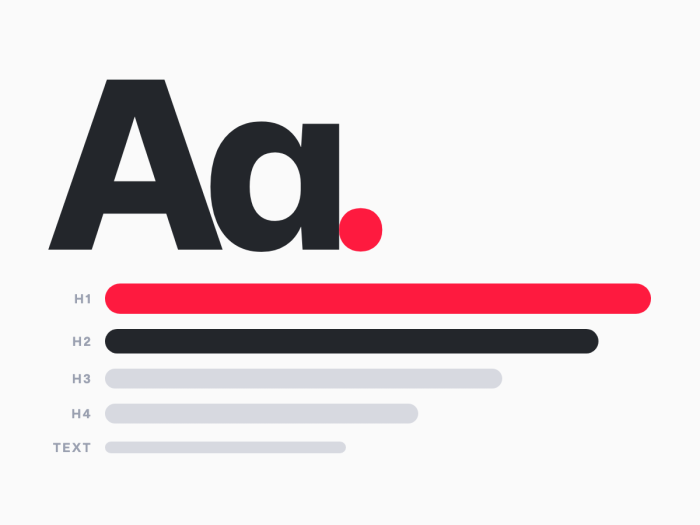
A page where type size, leading, line length and text colour can be changed and the effect seen at once. The CSS a developer copies into the project can sit right next to the preview. Far more precise than a static image with captions.
Checking aids
Show
Contrast of a colour pair, the minimum logo size at a given width, the clear space, or conversion between HEX, RGB and CMYK. Small things that are hard to describe in a manual but take seconds as a tool.
Configurators and artwork builders
Show
A business card, an email signature, a product caption or a banner: the user fills in the details, the tool assembles the finished output in the right layout and offers it for download. That saves a round trip to the design department.
Whatever the brand happens to need
Show
A searchable icon list, a print size calculator, a tone-of-voice glossary, a preview image generator. Because it is ordinary HTML, nothing limits the tool — it is built to fit exactly what the team really works with.
The tool's rules are readable by AI
A tool is not only for people. Through the MCP connector an AI assistant reads its rules — and keeps working by them.
Tip
Plain sentences are enough. The assistant gets them as text and never has to dig through the tool's code.
Every tool page has a field called AI rules specification. You write down, in your own words, the rules the tool follows — allowed colors, parameter ranges, forbidden combinations, what the output may be used for. Manual visitors never see it; it is a note for the assistant.
On top of that, the assistant can download the tool's own files, so it also sees the rules written into the HTML, the styles or the script.
A tool does not have to generate anything
Once the rules can be read, it stops mattering whether the tool draws anything at all. It can just as well be a set of rules that simply sits on its own page:
- Typesetting rules online. Font sizes, leading, line length, what is allowed and what is not. People look at them in the browser, the assistant turns them into CSS.
- A social post builder. Formats, safe zones, text lengths. The designer sees the preview, the assistant prepares the next batch of posts by the same rules.
- A generator, a configurator, a checking aid. Anything that fits into a single HTML page.
So it is up to the designer. Whatever they design and whatever rules they write down is what both the team and the assistant will follow.
Examples of tools already built
Five tools running right inside this manual — four graphics generators and one typesetting spec. Open them and try them out.